Select journal
The Select journal control allows selecting values from a Citeck platform journal. It is used to fill association fields: the user opens a modal window with journal records and selects the desired value. The component supports automatic journal detection by association type, predefined filters, sort configuration, data aggregation from multiple workspaces, and a custom values mode.
Component configuration
To specify which journal to display for value selection, you need to fill in the Journal ID field in the component settings.
The component automatically calculates the journal based on the type of association specified in the attribute, in which case the Journal ID field does not need to be filled in.
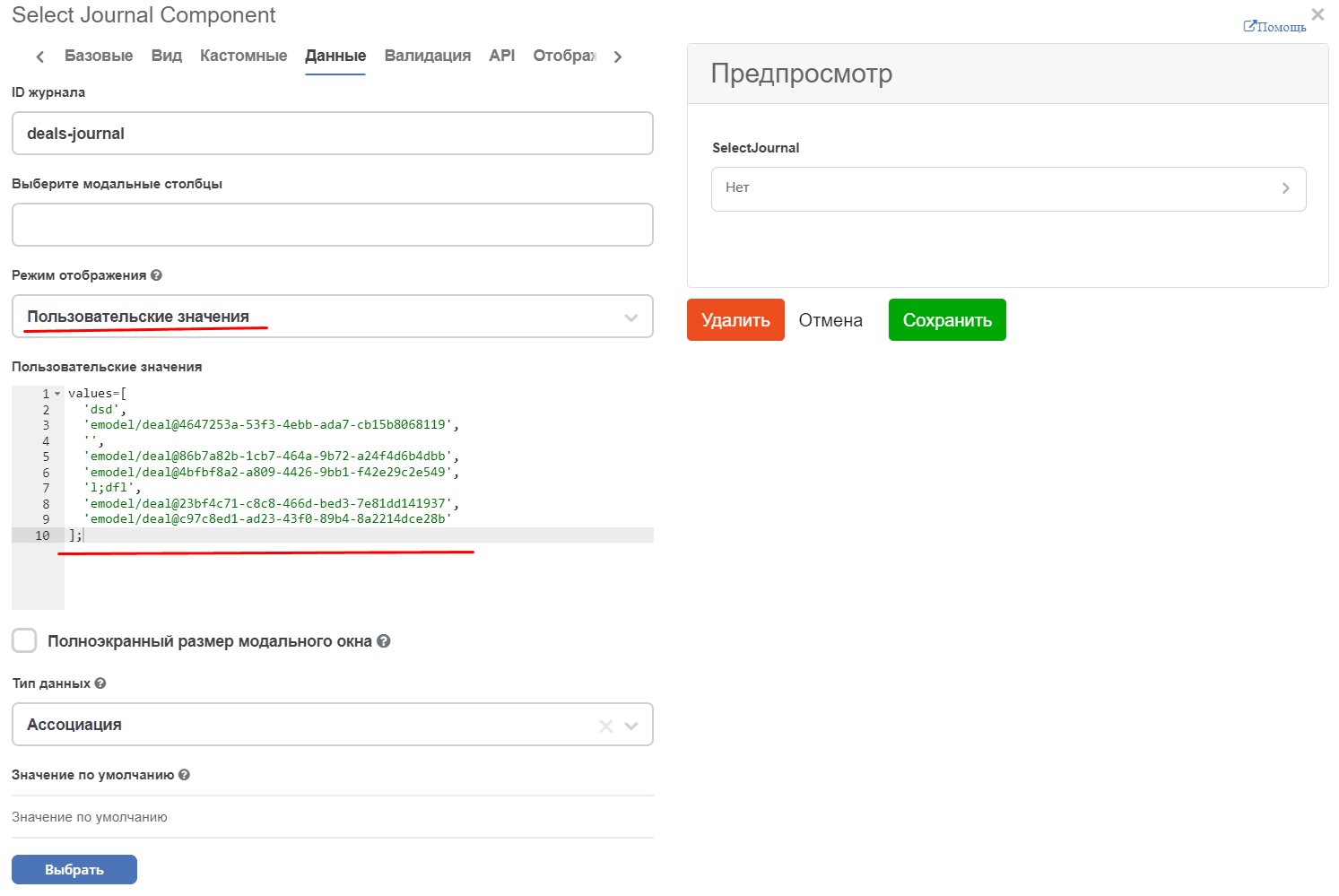
“Custom Values” display mode
To pass specific data from the selected journal (Journal ID) into an array, use the Custom Values mode.
When selecting the Custom Values display mode, specify the values to be displayed below.
In this case, all fields related to filtering, sorting, and table representation are hidden.
Selecting workspaces for data aggregation
On the Data tab, in the Workspaces for search field, you can select the workspaces from which to aggregate journal data. The journal data will be aggregated taking into account the added workspaces.
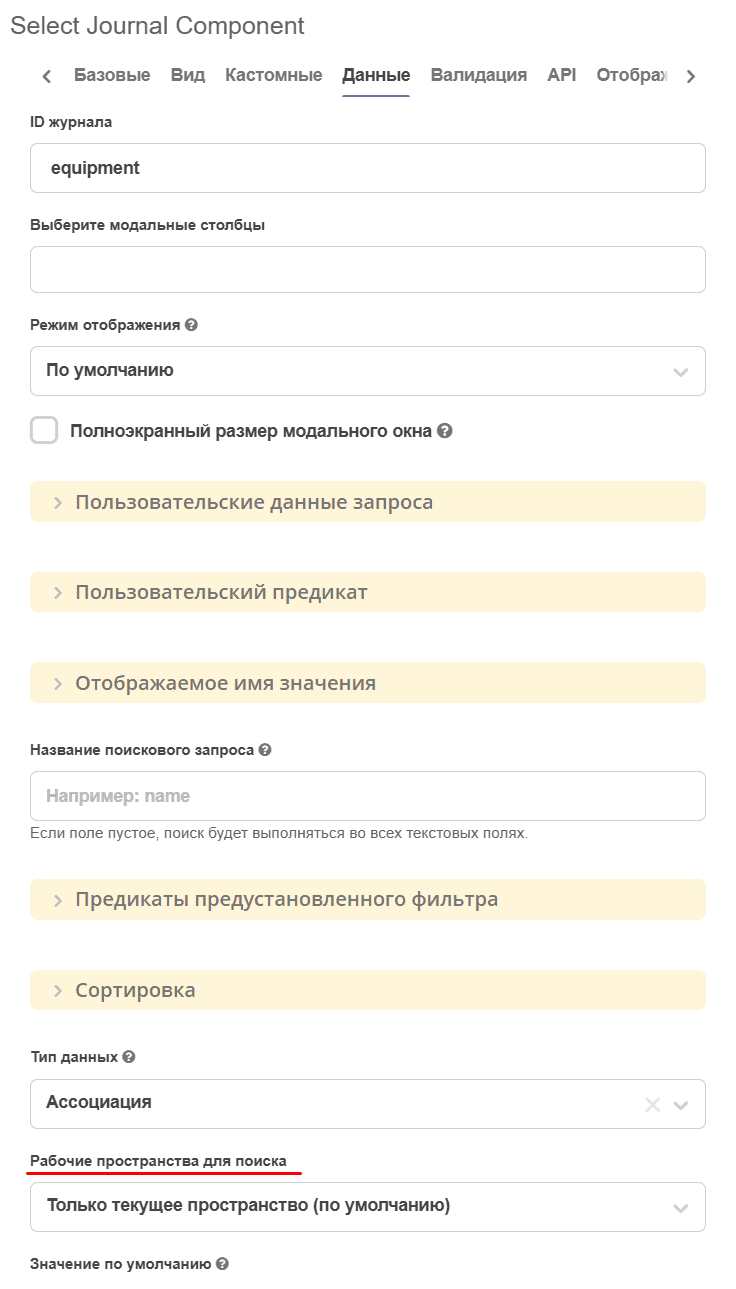
The default value is Current workspace only. The following options are available for selection:
All workspaces
Current workspace only (default)
Current and additional workspaces
Additional workspaces only
When selecting Current and additional workspaces or Additional workspaces only, the selection of additional workspaces becomes available:

Dynamic search criteria
On the Data tab, in the Custom query data field, you can generate additional search parameters:
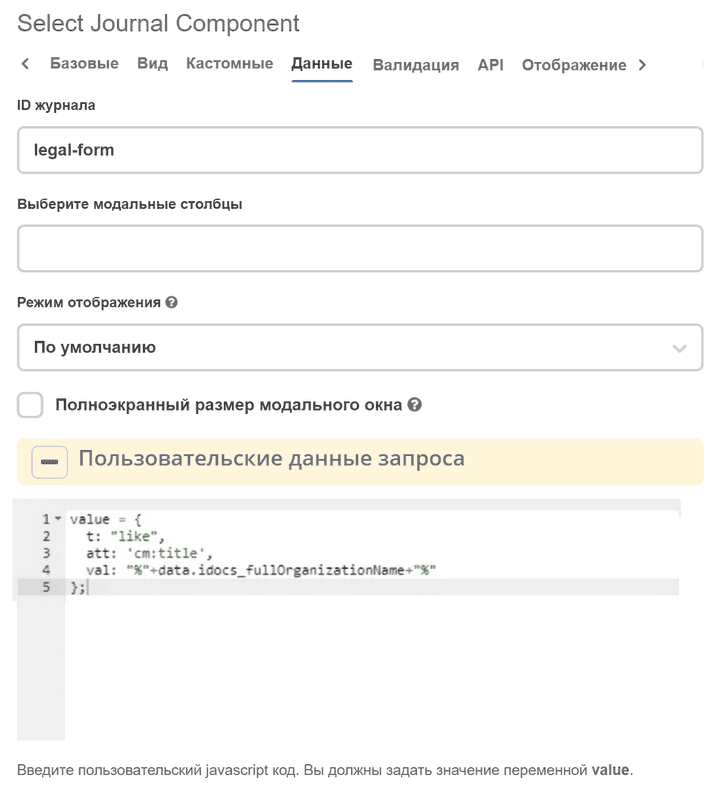
The list of predicates is described in the article Predicate Language in the JSON Representation section.
Predefined filters
On the Data tab, in the Predefined Filter Predicates field, you can configure component filters that will be applied upon initialization. The Predefined Filter Predicates field accepts a JavaScript expression where you need to assign an array of predicates to the value variable.
Example for a component with Journal ID = ‘currency’ set:
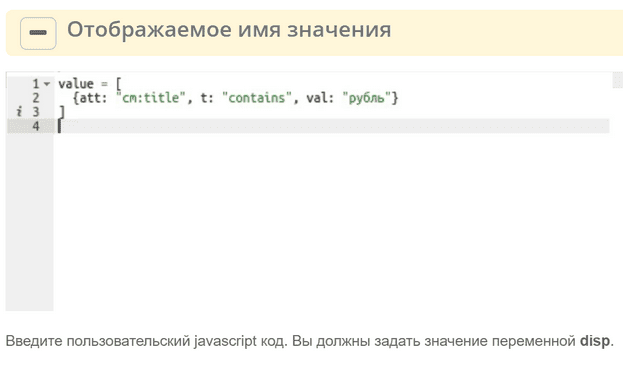
As a result, when the selection modal window is opened, a filter on the “Title” field with the predicate type “contains” and the value “ruble” will be applied by default.
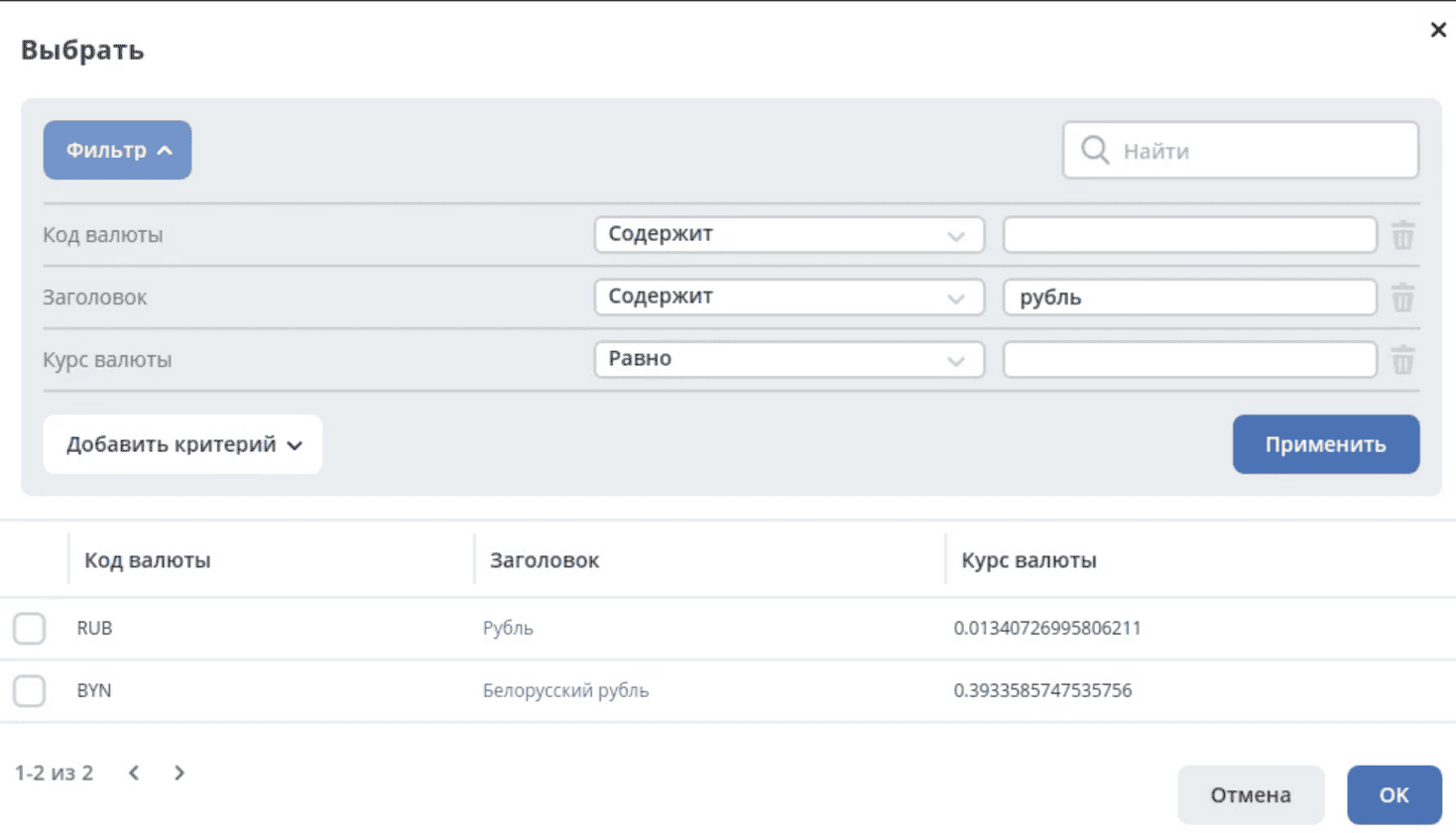
The list of predicates is described in the article Predicate Language (add link) in the JSON Representation section.
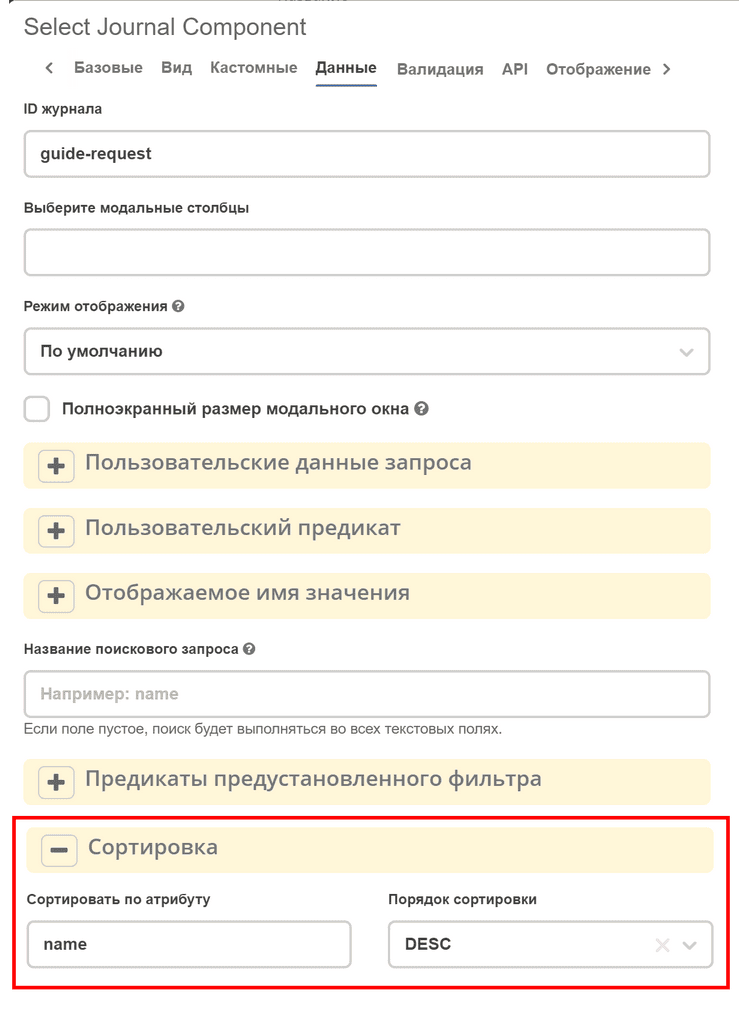
Configuring sorting by attribute
To configure sorting by attribute, specify the attribute and sort order in the “Sorting” section:
Computing Journal ID dynamically from form data
Previously, the SelectJournal field supported only a static journalId or substitution via a template.
In new scenarios (for example, depending on the type of the parent entity), it is necessary to compute the Journal ID dynamically from form data. The ability to define a JS expression (customJournalId) has been added, which is evaluated at runtime and overrides the static journalId, as well as proper reset of journal configuration when journalId changes.
On the Data tab, the Custom Journal ID value field:
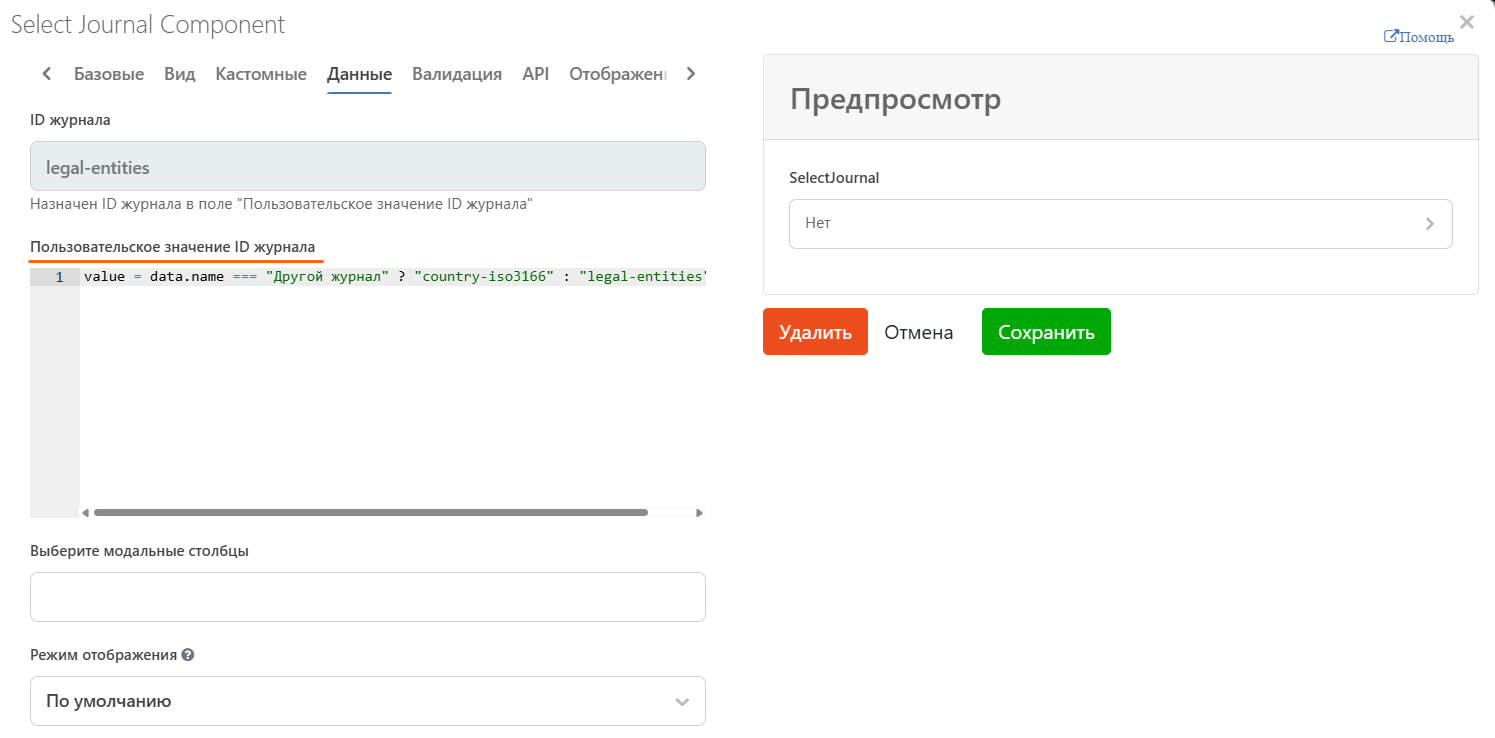
Let us consider an example:
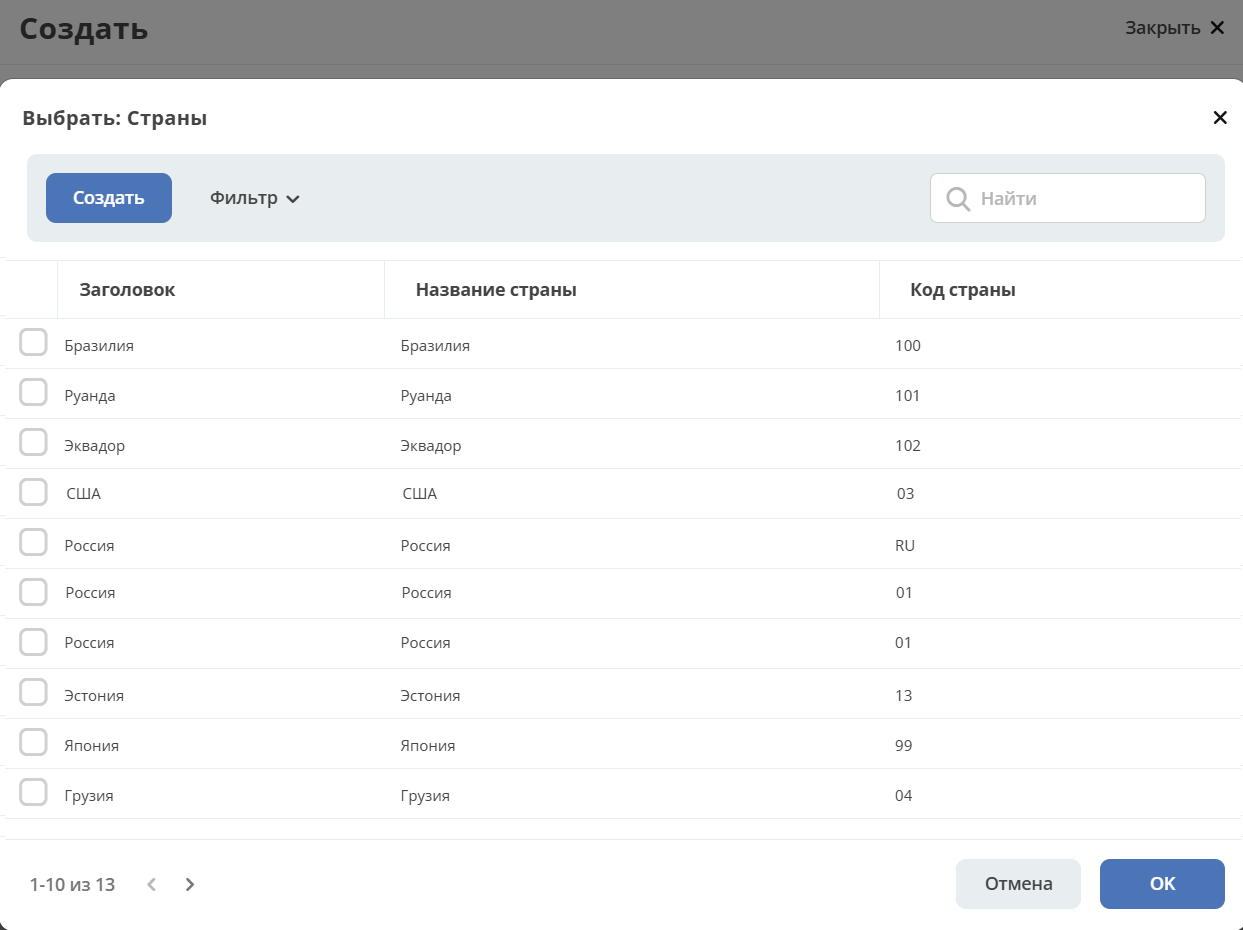
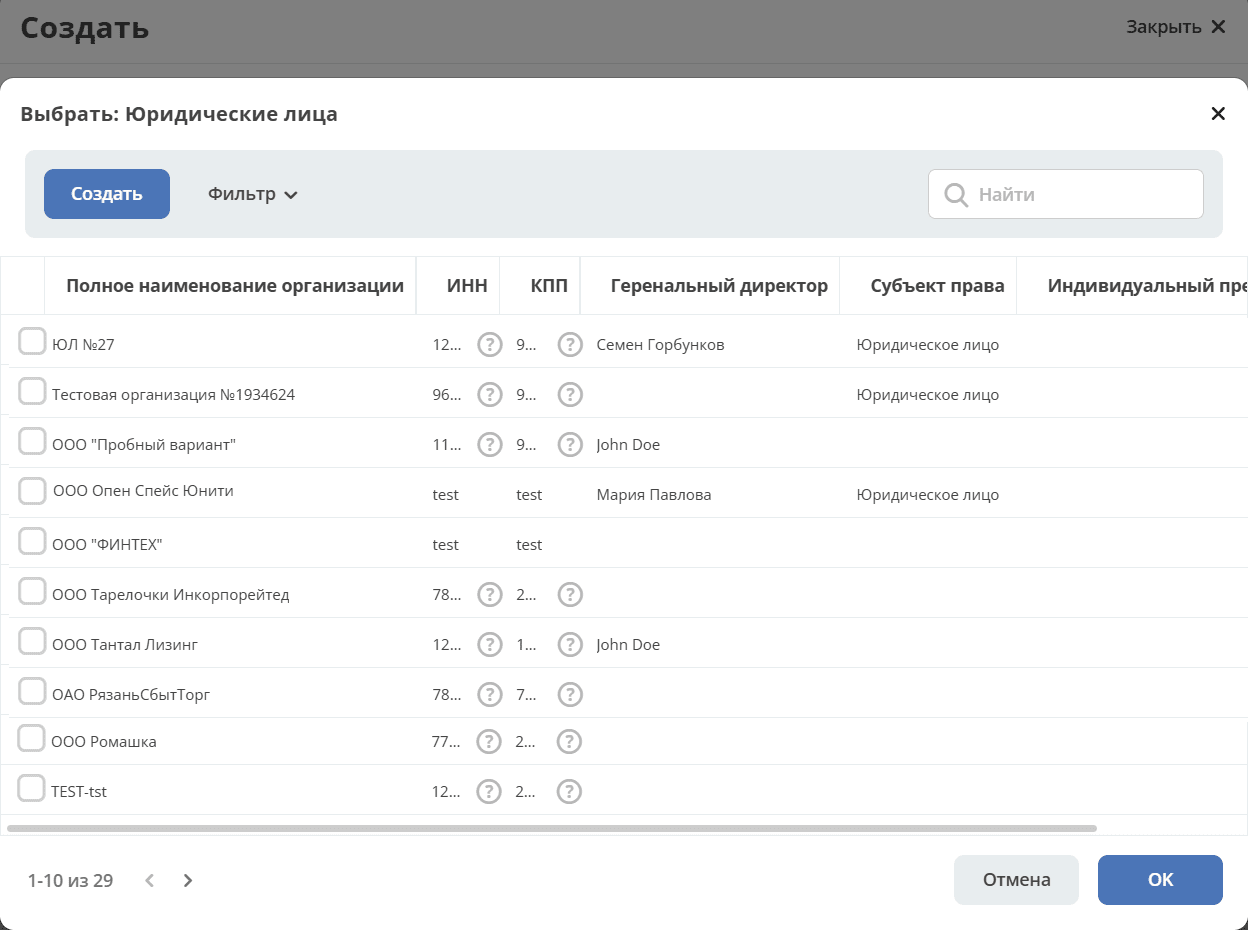
value = data.name === "Другой журнал" ? "country-iso3166" : "legal-entities";
If the specified condition is met, the journal from the condition is opened:

If the specified condition is not met, the journal from the Journal ID field is opened.

Migrating the “Value Title” invariant to new forms
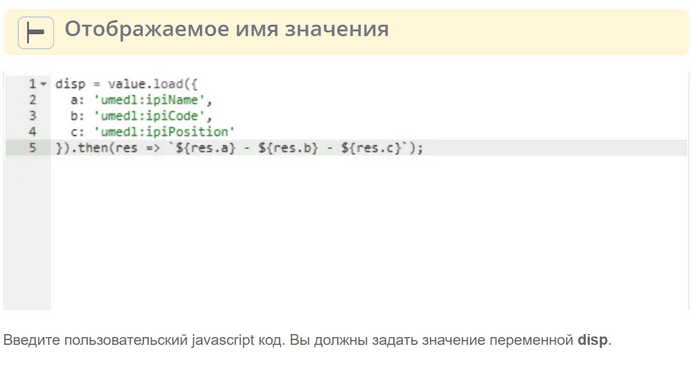
If the journal is used for selecting associations, it is better in this case to register an evaluator for the display name in the DisplayNameService on the server. In this case, the display name can be used on forms, in journals, and in many other places.
If the display name is specific to a particular form or the journal entries are virtual (have no representation on the server), you can use the calculated field Value Display Name.
The script written in this field receives the following as arguments
‘-’ |
lodash library with utility functions |
value |
the value whose display name we want to calculate (even if the field is multiple, only one value enters the script at a time) |
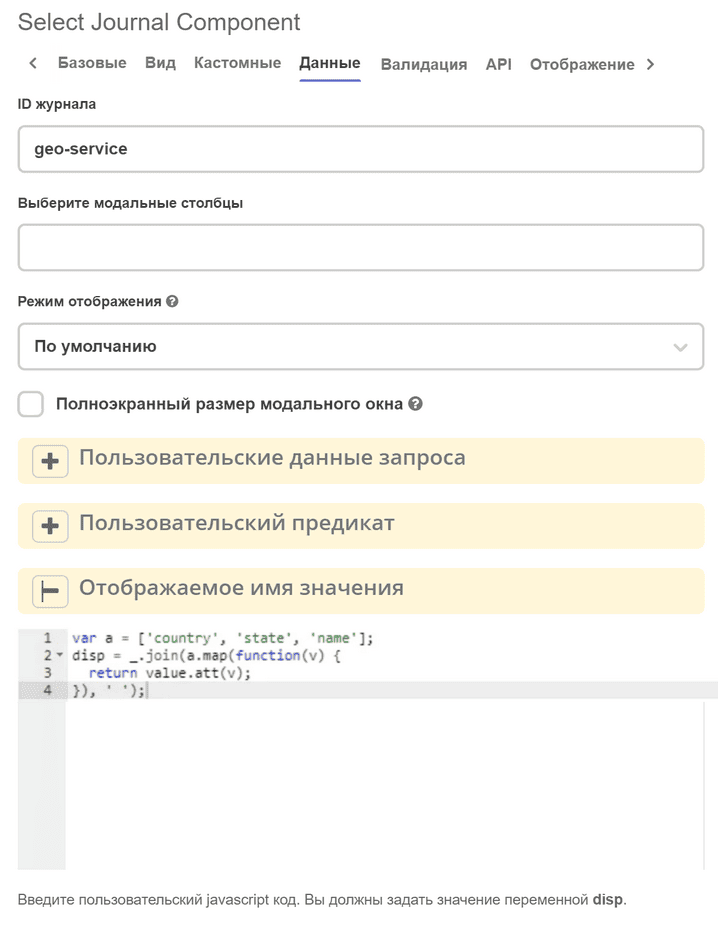
In some cases, value.att() may return an empty value because the value was not loaded. You can use the following code for correct display even if the value is not loaded.